
Your drive.
In real time.
GPS speed, G-force and heading. Watch your drive take shape, moment by moment.
GPS speed, G-force and heading. Watch your drive take shape, moment by moment.
Speed, G-force, heading and more. Mix the instruments you need, in portrait or landscape.
Acceleration, braking and turns are recognized automatically. A completed action appears as an on-screen banner.
Trips record automatically. Revisit speed and events along your route and timeline.
Simulated data · Not measured
Open the app, finish setup and get going. No registration or sign-in.
Trips are recorded, analyzed and stored on your device. They are not automatically uploaded to us.
We only receive a trip attachment when you choose to send a feedback email.
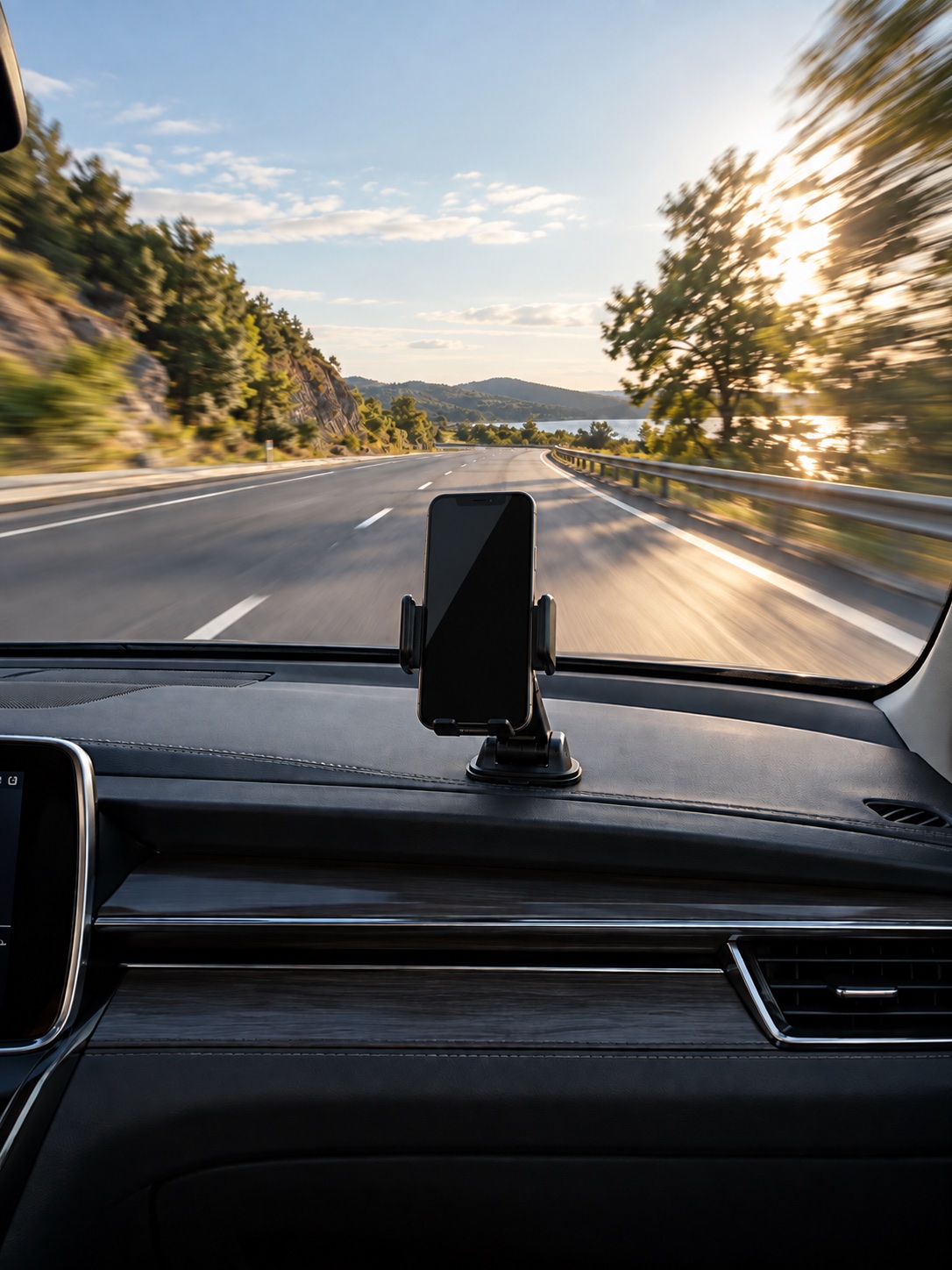
Set up before you start. CapDrive records automatically as you drive.
Read the getting-started guideSecure your iPhone and arrange your dashboard before driving. Portrait or landscape.
Follow the first-use tutorial and enable location access while using the app, with Precise Location on.
As you drive normally, CapDrive recognizes the mounting orientation and enables the full dashboard readings.
CapDrive is a native driving dashboard for iPhone running iOS 17 or later. It uses GPS and motion sensors to show speed, G-force, heading and driving events, automatically records trips, and offers route and timeline review.
No OBD adapter or extra measuring device is needed. CapDrive uses your iPhone’s built-in sensors. A secure car mount is required for measurement; do not hold the phone or leave it loose.
Trips are not automatically uploaded. They are processed and stored on your iPhone and are excluded from iCloud and computer backups. We only receive an attached trip when you choose to send a feedback email. Maps are provided by Apple Maps and may require a network connection.
After initial setup, CapDrive records automatically. When valid GPS data consistently indicates that the vehicle has been stationary for an extended period, it ends the current trip and starts another recording. Missing data is not treated as zero speed. Recordings without valid measurement do not appear in history. See the user guide for the recording rules.
After recording starts, it can continue in the background or while locked, with the iOS location indicator visible. System interruptions, permissions, sensor availability or storage issues may interrupt recording. Continuous recording is not guaranteed; see the user guide for details.
No. Speed, distance, G-force and attitude are estimates from iPhone sensors, affected by GPS reception, mounting stability and device conditions. CapDrive does not replace vehicle instruments, professional testing equipment or safe judgment. Scores do not measure driving ability or safety.